
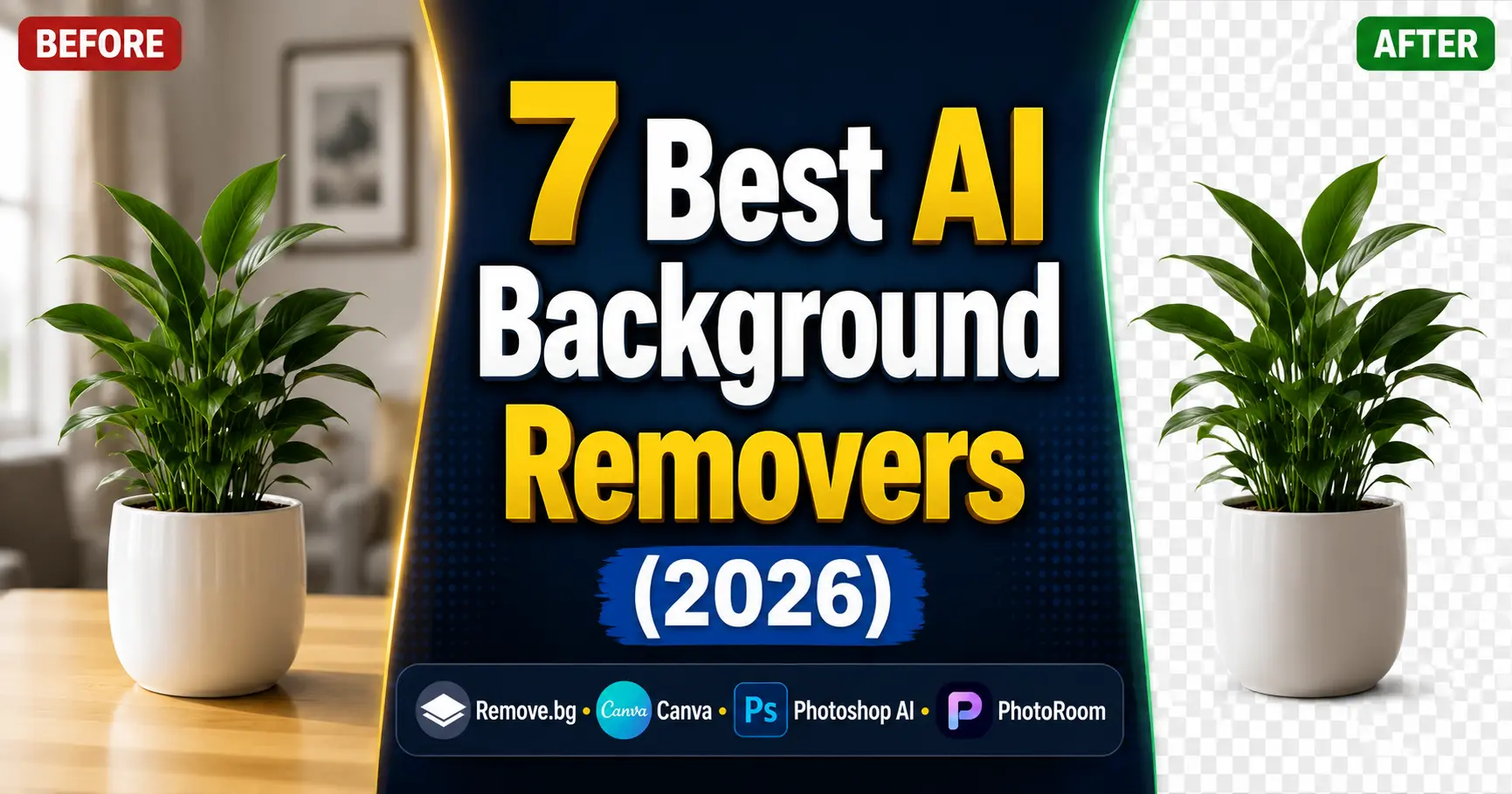
Quick Comparison of the Best AI Background Removal Tools
| Tool | Best For | Free Version |
|---|---|---|
| Remove.bg | Fast background removal | Yes |
| Adobe Firefly | Professional editing | Limited |
| Canva BG Remover | Social media creators | Limited |
| PhotoRoom | Ecommerce products | Yes |
| InPixio | Beginners | Yes |
| Luminar Neo | Photographers | Trial |
| Microsoft Designer | Completely free use | Yes |
If you’re in a hurry, Remove.bg is the fastest choice for simple images, Adobe Firefly offers the highest-quality edge detection for professionals, and PhotoRoom is ideal for ecommerce sellers who need batch processing.
Table of Contents
Why AI Background Removal Has Gotten Dramatically Better in 2026
Short answer: AI background removal in 2026 uses transformer-based segmentation models that understand context rather than just color contrast meaning they correctly identify subjects in complex, cluttered scenes that older tools failed on completely. Edge quality on hair, fur, glass, and transparent objects has improved to the point where professional retouchers use these tools as a first pass rather than a last resort.
Something shifted in AI background removal around late 2024 and it’s been moving fast ever since.
The old generation of AI background remover tools worked on color contrast — they looked for differences between foreground and background pixel values. This worked fine for a person standing in front of a plain wall. It fell apart on anything more complex — curly hair, glasses, sheer fabric, products with reflective surfaces, pets with fluffy coats.
The new generation uses contextual understanding. The model doesn’t just see pixels — it understands what a subject is, where it ends, and what belongs to the background even when the color difference is minimal. The practical result is that background removal quality that required thirty minutes of manual masking in Photoshop three years ago now happens automatically in under five seconds.
I’ve been testing these tools weekly across different content types — product photography, portrait headshots, pet photos, complex fashion shots — and the best AI tools for removing backgrounds in 2026 have genuinely crossed a threshold where the results are production-ready for most professional use cases without any manual cleanup.
According to Adobe’s 2025 imaging survey, background removal is now the single most-used AI feature across all creative applications globally — which tells you something about where the industry has landed on this capability.
If you’re building a full AI visual content workflow — not just background removal but image generation, enhancement, and design — my guide to the best AI tools for content creators in 2026 shows how background removal fits into the complete toolkit.
What Are the 7 Best AI Tools for Removing Backgrounds Right Now?
Short answer: The 7 best AI tools for removing backgrounds in 2026 are Remove.bg (fastest), Adobe Firefly in Photoshop (best professional quality), Canva BG Remover (best workflow integration), PhotoRoom (best for product and ecommerce), InPixio (best for photo editing + removal combined), Luminar Neo (best for photographers), and Microsoft Designer (best free option with no watermarks). Each serves a different workflow.
1. Remove.bg — Still the Fastest Free AI Background Remover?
Yes, for most standard use cases. Remove.bg remains the benchmark for speed — upload an image, get a transparent PNG back in about two seconds, no account required. The free tier gives you standard resolution outputs with no watermarks, which covers most web and social media needs.
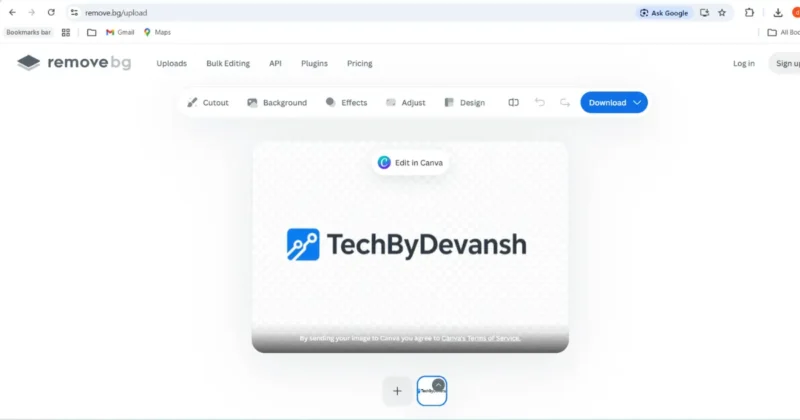
What’s changed in 2026: Remove.bg’s edge detection on hair has improved significantly with their latest model update. Curly and fine hair that used to require manual touch-up now comes out clean in most cases on the first pass.
The limitation is still there for complex subjects — highly reflective products, transparent glasses frames, intricate lace fabric. For those cases, the tools below produce better first-pass results.
Best for: Quick web assets, social media images, headshots with clean backgrounds.
2. Adobe Photoshop AI Background Removal — Best Professional Quality?
For the highest quality output, yes. Photoshop’s AI background removal — accessible through Select Subject and Remove Background — combines the best segmentation model available with Photoshop’s Refine Edge workflow, giving you both automatic quality and manual precision when you need it.
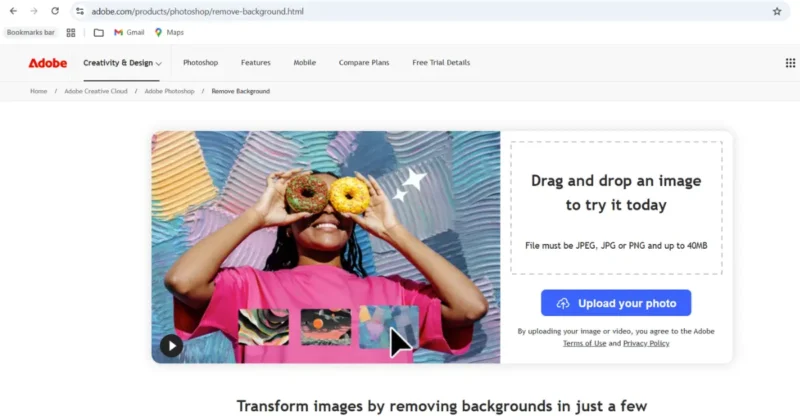
The 2026 update added what Adobe calls “contextual masking” — the AI now considers the entire image composition when determining where the subject ends, rather than analyzing the subject in isolation. The difference is most visible on images where subject and background share similar color tones — a classic failure case for older AI background remover tools.
If you’re already in the Adobe Creative Cloud ecosystem, this is the most integrated workflow available. No export-import between tools.
Best for: Professional design work, commercial photography, any project where edge quality is critical.
3. Canva BG Remover — Best AI Tool for Removing Background in a Design Workflow?
Canva’s background remover is the most convenient AI tool for removing background from an image for creators who design in Canva. Select your image, click Edit Image, click BG Remover — done. The removal happens inside your design without switching apps.
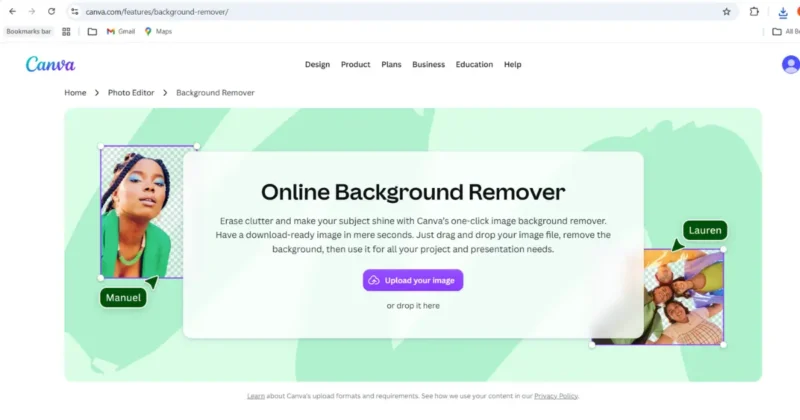
The 2026 improvement worth knowing: Canva’s BG Remover now handles product images significantly better than previous versions, which previously struggled with anything that wasn’t a portrait. The updated model performs well on packaged products, food photography, and lifestyle items.
If you want to explore everything Canva’s AI toolkit can do beyond background removal, my guide on how to use Canva Magic Media for social media graphics covers the full suite in detail.
Best for: Social media creators, content managers, anyone who lives in Canva.
4. PhotoRoom — Best AI Background Remover for Product Photography?
PhotoRoom is purpose-built for ecommerce and product background removal, and it shows. The app combines AI background removal with instant AI-generated replacement backgrounds — white studio, lifestyle scenes, gradient — making it a complete product photography workflow tool rather than just a removal tool.

The batch processing feature is the most practically useful innovation in this space in 2026. Upload 50 product images, remove all backgrounds simultaneously, apply a consistent white studio background to every one, download the full batch. For ecommerce sellers managing large product catalogs, this saves hours of work weekly.
For the full product photography AI workflow — from original shoot to professional output — my guide on product photography with AI covers how PhotoRoom fits into a complete ecommerce visual production pipeline.
Best for: Amazon sellers, Shopify store owners, product photographers, ecommerce brands.
5. InPixio Background Remover — Best Combined Photo Editor and Remover?
InPixio has positioned itself as the most complete free AI tools for removing background experience — combining background removal with a full photo editing suite. You remove the background and edit the image in one application without switching between tools.
The AI background removal quality is competitive with Remove.bg for standard subjects, and the built-in replacement background library (including seasonal, lifestyle, and professional backgrounds) makes it genuinely useful for creators who need the complete workflow rather than just the transparent PNG.
Best for: Beginner creators who want editing and removal in one free tool.
6. Luminar Neo Remove Background — Best for Photographers?
Luminar Neo’s background removal is the most impressive purely from an edge quality standpoint on complex photographic subjects. The MaskAI technology handles the cases that others struggle with — flyaway hairs, fur, feathers, and semi-transparent elements like veils and chiffon fabric.
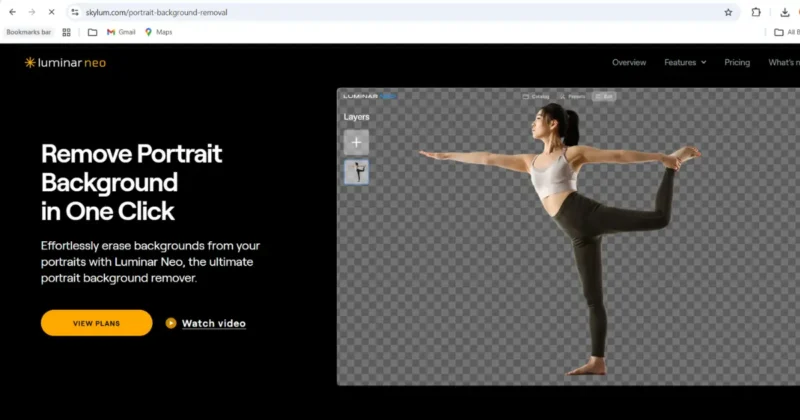
For photographers doing portrait retouching, fashion photography, or pet photography where edge quality is non-negotiable, Luminar Neo produces the cleanest first-pass results of any tool I’ve tested. The background replacement with AI-generated environments is also more sophisticated than most competitors.
The tradeoff: it’s not free and it’s not the fastest. It’s a professional photographer’s tool, not a quick-removal solution.
Best for: Portrait photographers, fashion photographers, pet photographers.
7. Microsoft Designer — Best Free AI Background Remover With No Watermarks?
Microsoft Designer is the most underrated free AI tool to remove background of photo without any watermarks or account requirements for basic use. Running on DALL-E 4 infrastructure, the background removal quality is genuinely solid for most common use cases.
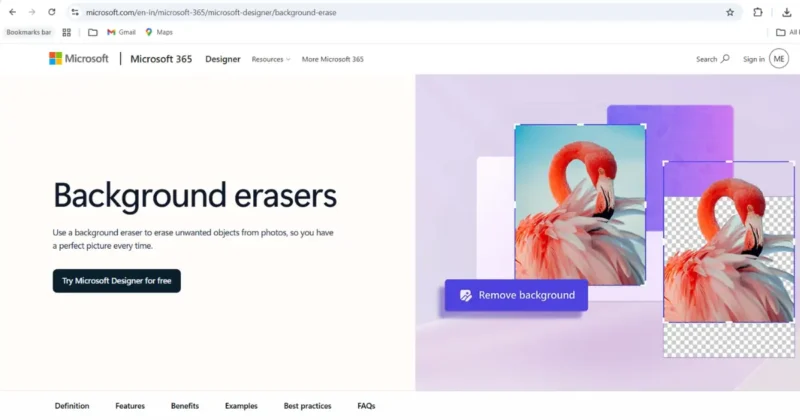
For Windows and Microsoft 365 users, it’s already accessible. No additional subscription, no credit card, no watermark on output. For creators who need a reliable free AI background remover and don’t want to pay for Remove.bg Pro, Microsoft Designer is the tool most people don’t know to reach for.
Best for: Budget-conscious creators, Windows users, anyone needing free watermark-free outputs.
Pricing Comparison of Popular AI Background Removal Tools
| Tool | Free Plan | Starting Price |
|---|---|---|
| Remove.bg | Yes | From $0.20/image or $8.10/month |
| Adobe Photoshop AI | Free Trial | $19.99/month |
| Canva BG Remover | (Pro only) | $12.99/month |
| PhotoRoom | Yes | $9.99/month |
| InPixio Background Remover | Limited | From $4.99/month |
| Luminar Neo | Free Trial | From $69/year |
| Microsoft Designer | Yes | Free (Microsoft 365 optional: $9.99/month) |
Which Free AI Tool to Remove Background of Photo Is Best?
Short answer: For completely free AI background remover tools in 2026, Remove.bg’s free tier is best for standard portraits and simple subjects. Microsoft Designer is best for zero-watermark free outputs. Canva’s free plan BG Remover is best for creators already designing in Canva. InPixio’s free tier is best for combined editing and removal without switching tools.
The free landscape in 2026 is genuinely competitive — you don’t need to pay to get usable results for most common use cases.
Remove.bg free tier gives you unlimited standard-resolution transparent PNGs. Standard resolution means 625x400px — sufficient for web graphics, blog images, social media posts, and most digital use cases.
Microsoft Designer removes backgrounds at full resolution for free with no watermark. This is meaningfully better than Remove.bg’s free tier for anyone who needs full-resolution free outputs.
Canva free plan includes background removal through the BG Remover with monthly credit limits. For creators already building content in Canva, this is the most friction-free option.
One thing worth knowing: the ai background remover free online landscape changes frequently. Tools that offered generous free tiers in 2024 have tightened their limits. Always check current pricing before committing to a workflow.
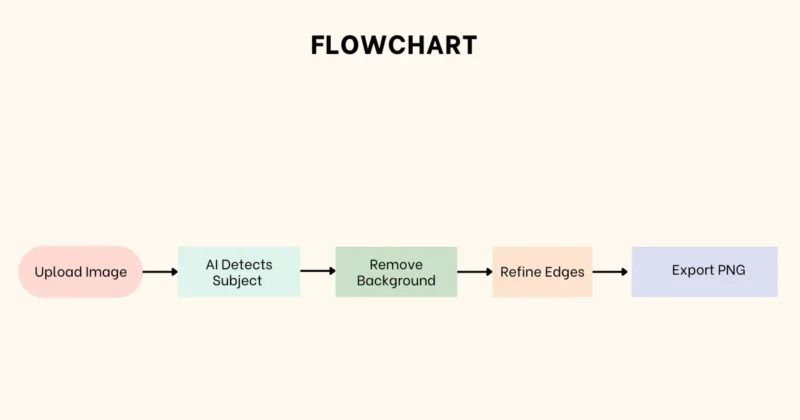
How Do You Remove a Background Using AI Step by Step?
Short answer: The fastest AI background removal workflow is: prepare your source image on a clean background where possible, upload to your chosen tool, let the AI process, check the edges at 100% zoom, use the eraser or refinement brush for any problem areas, and export as transparent PNG at the highest available resolution. Total time: under two minutes for most images.
Step 1 — Prepare your source image
The single biggest factor in AI background removal quality is the source image. Higher contrast between subject and background = cleaner automatic removal. If you’re photographing a subject specifically for background removal, shoot against a plain colored wall — not necessarily white, just clean and contrasting. Avoid backgrounds that share colors with your subject.
Step 2 — Upload and let the AI work
Upload to your chosen best AI tool for removing backgrounds. Don’t pre-crop or resize — upload at the highest resolution you have. Higher resolution gives the segmentation model more edge data to work with.
If the image you’re removing the background from was originally generated with an AI image generator — Midjourney, DALL-E 4, or Stable Diffusion — my guide to the best AI image generation tools for creators covers which generators produce the cleanest, highest-resolution outputs that background removal tools work best with.
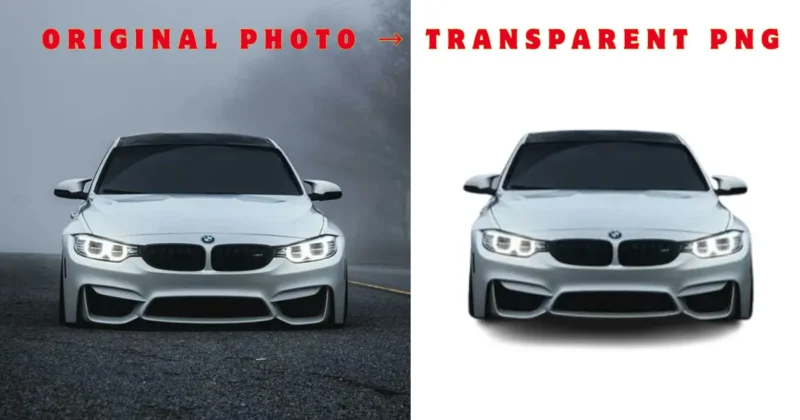
Step 3 — Check the edges at 100% zoom
Before downloading anything, zoom to 100% and pan around the entire edge of your subject. Look for color fringing (residual background color at the edge), missed areas, and over-removal (parts of the subject removed with the background). Most problems are tiny and fixable with a quick brush refinement.
Step 4 — Fix problem areas
Use the tool’s eraser or refinement brush to fix any edge issues. For hair specifically — zoom to 200% and use a small brush size. For hard edges like a shirt collar — a slightly larger brush at 100% zoom.
Step 5 — Export as transparent PNG
Always export as PNG — not JPEG, which doesn’t support transparency. Export at the maximum available resolution. If you’re using the free tier of a tool that limits resolution, consider using a separate AI upscaler like Canva’s Image Enhancer before background removal to get more pixel data to work with.
For a dedicated deep dive into transparent PNG creation and export best practices, my guide to the best AI PNG generator tools covers every format and export option in detail.
Pro Tips for Better Background Removal
- Upload the highest resolution image available.
- Avoid blurry or low-light photos.
- Use PNG format when transparency is required.
- Zoom in before downloading to inspect edge quality.
- For hair and fur, choose tools with advanced edge refinement.
Which AI Background Remover Handles Hair and Complex Edges Best?
Short answer: Luminar Neo leads on hair, fur, and semi-transparent fabric edges. Adobe Photoshop’s AI with Refine Edge is the best for professional correction of any edge type. Remove.bg’s 2026 model update significantly improved hair performance and now handles most straight and wavy hair cases cleanly without manual correction.
Hair edges are the most technically demanding case for any AI remove background software. Here’s what I actually found in testing. If the photo you’re working with is an old or damaged image that needs restoration before background removal — fixing scratches, fading, or blur first — my guide to the 7 powerful AI photo restoration tools that actually work covers that workflow step in full.
Luminar Neo on curly hair with mixed-color backgrounds: clean first pass, minimal fringing, individual strands distinguishable. Best result in this category.
Adobe Photoshop AI on complex fashion shots with sheer fabric overlay: the Refine Edge workflow caught every transparent fabric element correctly. No other tool matched this.
Remove.bg on straight and wavy hair against simple backgrounds: 2026 model handles these cases cleanly now. For portrait headshots with darker hair against lighter backgrounds, the automatic result is often usable without any manual work.
PhotoRoom on product images with reflective packaging: better than any other tool tested on this specific case. Handles metallic surfaces and plastic packaging transparency well.
Canva BG Remover on food photography: significantly improved in 2026. Handles the complex edges of food items (salad leaves, soup steam, layered cake edges) much better than its 2024 version.
Common Mistakes to Avoid When Removing Backgrounds with AI
- Uploading low-resolution photos
- Exporting as JPG instead of PNG
- Ignoring edge cleanup
- Compressing images before editing
- Using the wrong tool for ecommerce photos
What Is the Best AI Background Remover for Ecommerce and Product Shots?
Short answer: PhotoRoom is the best AI background remover for ecommerce specifically — batch processing, Amazon-compliant white background generation, and product-specific model training make it purpose-built for this use case. For individual high-quality product shots, Adobe Photoshop AI produces the cleanest professional results.
Ecommerce background removal has specific requirements that general-purpose tools don’t always address:
White background compliance. Amazon, Etsy, and most marketplaces require product main images on pure white backgrounds (#FFFFFF, not off-white). PhotoRoom generates compliant white backgrounds automatically after removal.
Batch processing at scale. Sellers with large catalogs need to remove backgrounds from dozens or hundreds of images efficiently. PhotoRoom’s batch feature handles this. Remove.bg’s API is the developer-friendly option for automated pipelines.
Shadow and reflection preservation. Good product photography often has intentional drop shadows or surface reflections that add realism. Aggressive AI removal strips these. PhotoRoom and Luminar Neo both offer “preserve shadow” options that most competitors lack.
Consistent output across a catalog. Every product image in a catalog needs to look like it came from the same shoot — same background tone, same shadow treatment, same margins. PhotoRoom’s batch consistency is the strongest in this category.
FAQs
What is the best free AI tool to remove background from images in 2026?
Microsoft Designer offers the best free AI background remover experience with no watermarks and full-resolution output. Remove.bg’s free tier is fastest for standard subjects at standard resolution. Canva’s free BG Remover is best for creators already working in Canva’s design environment.
Which AI background remover handles hair edges most accurately?
Luminar Neo’s MaskAI handles hair, fur, and fine edges most accurately in 2026 testing. Adobe Photoshop’s AI with Refine Edge is the best for professional correction. Remove.bg’s updated 2026 model now handles most straight and wavy hair cases cleanly without manual touch-up needed.
Can AI remove background from image without losing quality?
Yes — modern best AI tools for removing backgrounds preserve image quality during removal. To maintain maximum quality, upload at the highest available resolution, export as PNG rather than JPEG, and use a tool that outputs at your input resolution. Avoid compressing or resizing before background removal.
Is Photoshop AI background removal better than Remove.bg?
For professional quality and complex subjects, Adobe Photoshop AI background removal produces better edge quality — especially with the Refine Edge workflow for hair and transparent objects. For speed and convenience on standard subjects, Remove.bg is significantly faster with no learning curve.
Which AI background remover is best for Amazon product images?
PhotoRoom is the best AI background remover for Amazon product images — it generates Amazon-compliant pure white backgrounds automatically, supports batch processing for large catalogs, and preserves product shadows naturally. Remove.bg’s API is the best option for automated ecommerce background removal pipelines.
Final Thoughts: Which AI Background Removal Tool Should You Use?
After genuinely testing every major AI tool for removing background from image use cases in 2026 — here’s the honest breakdown:
Quick free removal with no watermark: Microsoft Designer
Fastest overall for standard subjects: Remove.bg
Best professional quality: Adobe Photoshop AI
Best for Canva users: Canva BG Remover
Best for ecommerce sellers: PhotoRoom
Best for photographers: Luminar Neo
Best combined editor and remover: InPixio
The best AI tools for removing backgrounds in 2026 have genuinely crossed the threshold where the gap between AI output and professional manual masking has narrowed to almost nothing for most use cases.
Start with the free tier of Remove.bg or Microsoft Designer. Test your most complex image type — hair, product, pet, whatever you deal with most. The result will tell you immediately whether you need a more specialized tool or whether the free option covers your needs.
And once your background is removed cleanly, if you’re using those transparent PNG outputs in larger design projects — brand assets, social media templates, product listings — my guide to the best AI PNG generator tools for transparent backgrounds covers everything you need to know about working with transparent files across different design tools and platforms.
What kind of images are you removing backgrounds from most often? Drop it in the comments — happy to give specific tool recommendations for your exact use case.