
Table of Contents
Why AI Photo Restoration Has Changed Everything in 2026
AI photo restoration in 2026 can fix scratches, tears, fading, blur, and noise in old photos automatically — tasks that used to require hours of professional Photoshop work now take under sixty seconds. The quality of modern AI-powered photo restoration tools has crossed a threshold where most restored images are genuinely usable for print, social media, and content creation.
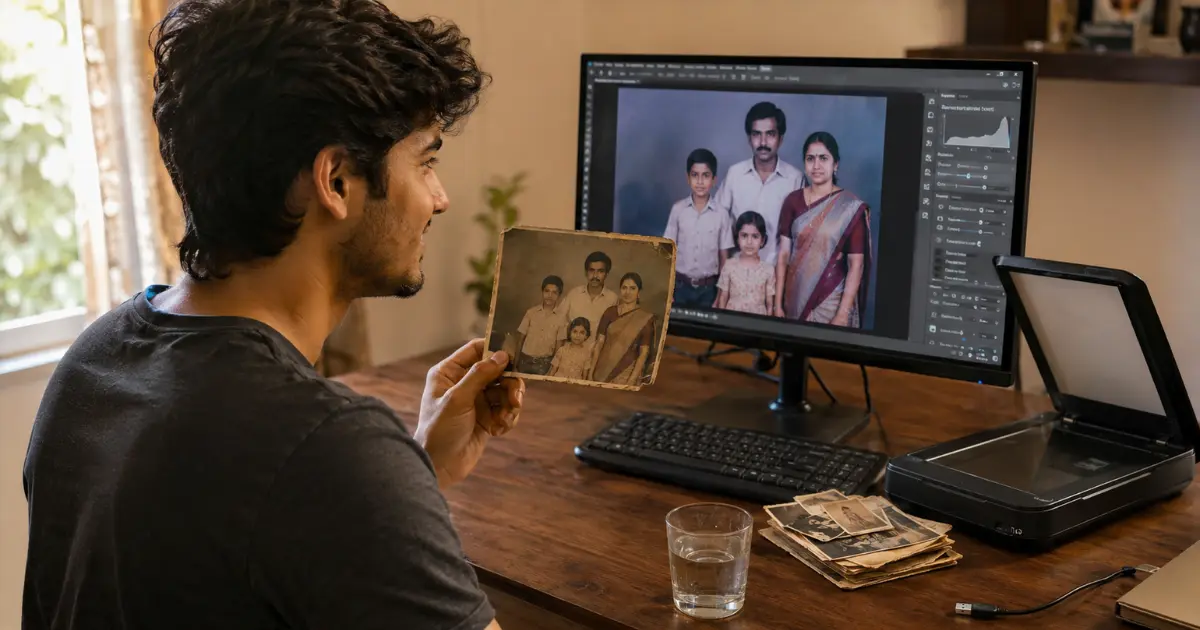
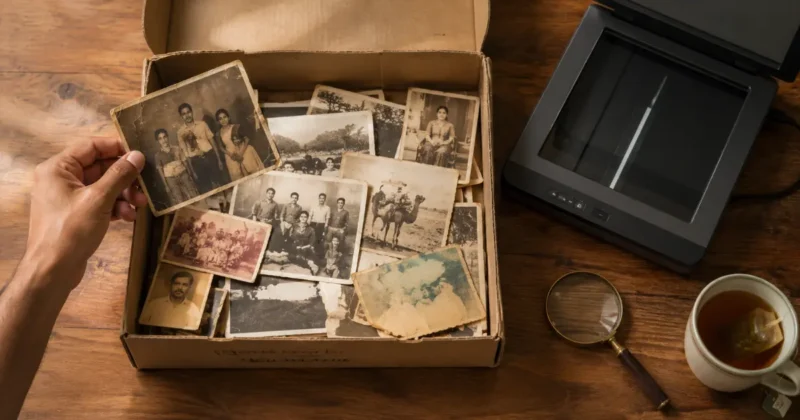
I have a box of old family photos at home that I’ve been meaning to restore for years.
Faded 1970s prints. A few cracked black and white portraits from the 1940s. Some color photos from the 80s that have gone orange and pink in all the wrong places. Every time I looked at that box, I thought maybe I’ll take these to a professional someday.
Then I started testing AI photo restoration tools seriously, and the “someday” became last Tuesday afternoon.
In under two hours, I processed every photo in that box using a combination of free and paid AI restore old photos tools. The results genuinely surprised me not in a “good enough” way, but in a “I can’t believe this is free” way.
That experience is what this guide is built on.
AI photo restoration in 2026 isn’t just a novelty feature. It’s a genuinely useful workflow for content creators building historical or archival content, for families wanting to preserve memories in shareable digital form, and for bloggers and social media managers who want unique vintage-style visuals without paying stock photo licensing fees.
It’s also just one part of a much larger AI toolkit available to creators right now — if you want to see how restoration fits alongside image generation, video creation, and design tools, my roundup of the best AI tools for content creators in 2026 gives you that full picture.
According to Adobe’s 2025 imaging research, AI-powered photo enhancement and restoration are now among the top five most-used features across Lightroom’s 30 million active users globally — which tells you something about how mainstream this has become.
What Are the Best AI Photo Restoration Tools in 2026?
The best AI photo restoration tools in 2026 are:
Remini (best mobile AI old photo restoration)
Topaz Photo AI (best desktop quality)
Adobe Lightroom AI (best for photographers already in the Adobe ecosystem)
MyHeritage Photo Enhancer (best for family and portrait restoration)
AI Ease Photo Restoration (best free online option)
Each serves a different use case and budget.
After testing all of these with genuine damaged historical photos — not test images — here’s what I actually found:
Is Remini the Best AI Photo Restoration App?
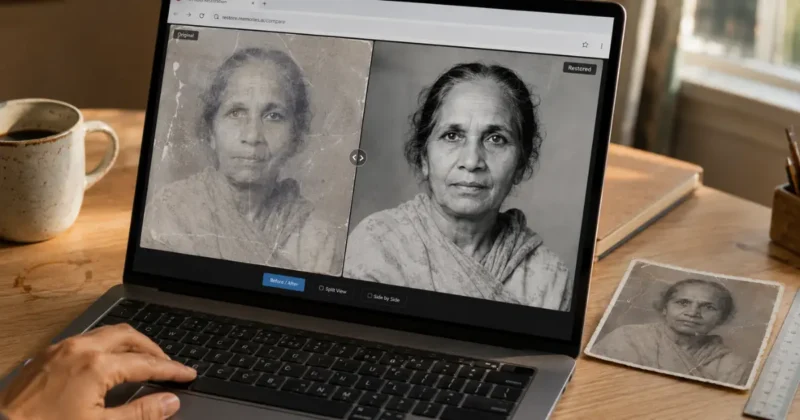
For mobile use, yes. Remini is the most downloaded AI photo restoration app globally for a reason — it’s genuinely fast, genuinely good, and genuinely simple. Upload a photo, tap enhance, get a restored version back in about ten seconds.
Where Remini excels is face restoration in old photos. The AI is specifically trained on portrait restoration and produces sharper, more detailed facial features from blurry or damaged originals than almost any competitor at the same price point. For family portrait restoration specifically, Remini is the starting point I’d recommend to almost anyone.
The limitation: Remini is optimized for portraits. For landscape photos, architectural images, or old photos without human subjects, the results are less impressive than dedicated upscaling tools.
Is Topaz Photo AI the Best Desktop AI Photo Restoration Tool?
For raw quality on the desktop, yes. Topaz Photo AI combines three previously separate tools — DeNoise AI, Sharpen AI, and Gigapixel AI — into a single application that handles noise reduction, sharpening, and upscaling in one automated workflow.
What makes Topaz genuinely different is the face recovery module. For photos where the subject’s face is blurry or pixelated — common in scanned prints from the 1960s and 70s — Topaz reconstructs facial detail with a precision that other tools don’t match.
At around $199 as a one-time purchase, it’s the most significant financial investment on this list. It’s worth it if you’re processing large volumes of old photos or if the output quality has genuine commercial or family archival importance.
What Makes AI Ease Photo Restoration Different?
AI Ease Photo Restoration is the browser-based option that produces the most impressive free results I’ve tested. No installation, no account required for basic use, and the restoration quality for faded and scratched photos is meaningfully better than most other free online tools.
For content creators who need a quick AI photo restoration online free solution — a restored vintage photo for a blog header, a historical image for a social media post — AI Ease handles most common restoration needs without any cost.
If you’re also generating new images from scratch alongside restoring old ones, my complete guide to the best AI image generation tools for creators in 2026 covers every major generator worth knowing — useful context for building a full visual content workflow.
How Do You Restore Old Photos With AI Step by Step?
The basic AI photo restoration workflow is: scan or photograph your original at the highest resolution possible, upload to your chosen AI photo restoration tool, apply restoration and enhancement, then upscale the output using a tool like Topaz Gigapixel or Canva’s Image Enhancer before final export. Total time for most photos: two to five minutes.
Here’s the exact workflow I use:
Step 1 — Get the best possible scan
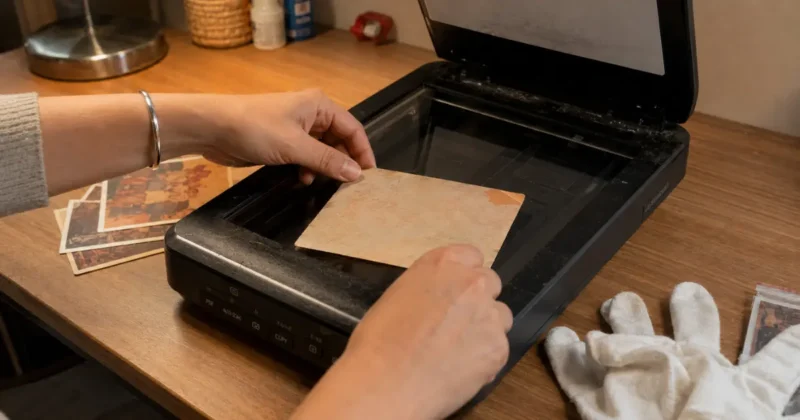
The quality of your AI restoration output is directly limited by your input quality. For printed photos, scan at a minimum of 600 DPI — 1200 DPI if the photo is small or heavily damaged. Use a flatbed scanner rather than photographing with your phone whenever possible. Free scanner apps like Microsoft Lens produce surprisingly clean scans in good light if you don’t have a dedicated scanner.
Step 2 — Apply AI restoration first
Upload your scan to Remini, AI Ease, or your chosen photo restoration AI tool. Let the AI run its full restoration pass — scratch removal, fading correction, noise reduction, basic sharpening. Don’t manually adjust anything yet. See what the AI produces first, then decide what needs additional work.
Step 3 — Upscale before final export
After restoration, upscale your image to at least 2x its restored resolution using Topaz Gigapixel or the free Canva Image Enhancer. Upscaling after restoration — not before — produces cleaner results because the restoration AI works better with the original pixel structure intact.
Step 4 — Fine-tune in Lightroom or Canva
Most AI-restored photos benefit from a small amount of manual color correction after the AI pass. Use Adobe Lightroom‘s AI color tools or Canva’s photo editor to adjust warmth, contrast, and saturation to match what the original scene would have looked like.
If Canva is new to you or you haven’t explored its full AI toolkit yet, my step-by-step guide on how to use Canva Magic Media and its full AI suite covers everything from the photo editor to image generation — all the tools you’ll use in this refinement step.
Step 5 — Export at full resolution
Always export your final restored photo at the maximum available resolution as a TIFF or high-quality JPEG. Save the original scan separately. You may want to re-process with better tools in the future as AI photo restoration technology continues to improve.
One export format worth knowing: if your restored photo needs to be used as an overlay, watermark, or design element with a transparent background, my guide to the best AI PNG generator tools for transparent backgrounds shows exactly how to take any restored image and export it cleanly as a transparent PNG for use in design projects.
What Is the Best Free AI Photo Restoration Online Tool?
The best free AI photo restoration online tools in 2026 are:
AI Ease Photo Restoration (best quality free)
MyHeritage Photo Enhancer (best free for portrait and family photos)
Remini’s free tier (best free mobile option)
VanceAI (strong free tier for old photo colorization and upscaling)
All produce usable results without payment for standard resolution outputs.
The free options have improved significantly and most casual restoration needs don’t require a paid subscription.
MyHeritage Photo Enhancer is the most emotionally resonant free tool in this category — it was built specifically for restoring family and genealogy photos, and the portrait restoration quality on free tier is genuinely impressive. The AI old photo restoration animation feature, which adds subtle motion to static portraits, is unique to MyHeritage and genuinely striking for content use.
VanceAI Photo Restorer handles colorization alongside restoration — making it the most versatile free AI old photo restoration online option for creators who need both services in one workflow. The free tier gives you five images per month, which is enough for testing whether the tool works for your specific photo types before committing.
For completely unlimited free processing, running Stable Diffusion locally with the GFPGAN or CodeFormer restoration models gives you the most powerful free AI photo restoration workflow available — though the setup requires technical comfort with Python environments and model installation.
If you’re still deciding whether Stable Diffusion is the right tool for your broader AI image work — versus Midjourney or DALL-E 3 — my head-to-head comparison of all three breaks down the quality, pricing, and ease-of-use differences clearly.
Can AI Colorize and Restore Black and White Photos?
Yes — AI photo colorization has improved dramatically in 2026. Tools like Palette.fm, MyHeritage’s colorization feature, and Remini’s color restore function can add realistic color to black and white photos automatically. The results are based on AI training on millions of historical photos and are significantly more accurate than earlier colorization tools that produced flat, obviously artificial color.
This is the feature that produces the most visceral reaction from people who try it for the first time.
Palette.fm is the most dedicated free colorization tool — designed specifically for this use case rather than as a feature inside a broader restoration tool. Upload a black and white photo, select a colorization style, and get a color version back in about fifteen seconds. The color accuracy on skin tones, natural environments, and period clothing is better than most people expect.
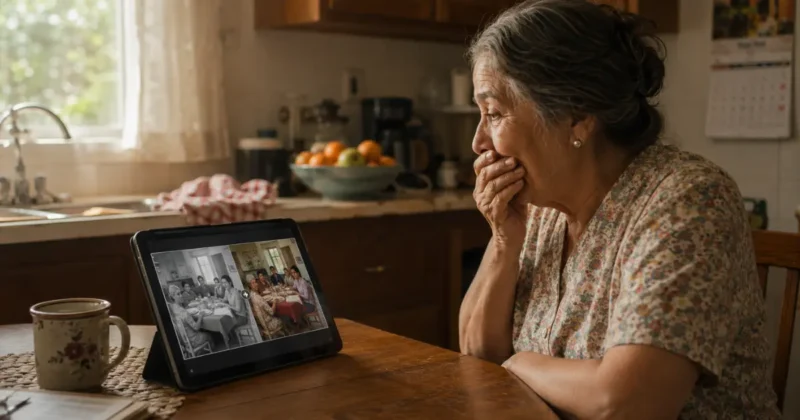
The honest caveat: AI colorization makes educated guesses based on training data. For photos where the original colors matter historically — a specific car model, a uniform, a painted wall — always verify the AI’s color choices against historical references. The AI may know that 1940s suits were typically grey or navy, but it doesn’t know which specific color your grandfather’s suit was.
For content creation purposes though — blog images, social media posts, YouTube thumbnails that need vintage visual interest — AI colorization produces compelling, unique visuals that genuinely stand out against standard stock photography.
How Do You Upscale Old Photos With AI Without Losing Quality?
The best AI image enhancer tools for upscaling old photos without quality loss are:
Topaz Gigapixel AI (best quality, paid)
Let’s Enhance (best free online upscaler)
Canva’s free Image Enhancer (best for creators already using Canva)
The key principle: always upscale after restoration, not before, and never upscale more than 4x the original resolution in a single pass.
Upscaling and restoration are two different problems — and the order you do them in matters.
Upscale after restoration. Running an old photo through your restoration AI first — removing scratches, correcting fading, sharpening detail — and then upscaling produces significantly cleaner results than upscaling first. The restoration AI works better when it has the original pixel structure to analyze. Once restoration is complete, the upscaling AI has clean, repaired data to work with.
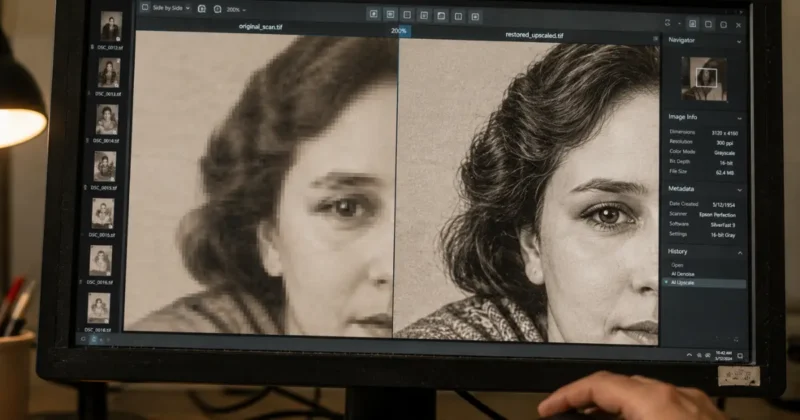
Let’s Enhance is the strongest free AI image enhancer free option for creators who don’t want to install desktop software. Browser-based, no account required for limited use, and the upscaling quality for photographic content is genuinely competitive with paid desktop tools for most use cases.
Topaz Gigapixel AI is the quality standard for desktop upscaling — 4x, 6x, even 8x enlargement with face recovery built in. The one-time purchase price is significant but the quality difference on fine detail — hair, fabric texture, architectural elements — is visible compared to free options.
For content creators working with old photos regularly, the Topaz ecosystem of Photo AI, Gigapixel, and DeNoise represents the most complete AI-powered photo restoration desktop workflow currently available.
What Are the Best AI Image Enhancer Tools for Creators?
For content creators specifically, the best AI image enhancer tools in 2026 are:
Topaz Photo AI (best quality all-in-one)
Adobe Lightroom’s AI Denoise and AI Masking (best for photographers)
Canva’s Image Enhancer (best for social media workflow integration)
Let’s Enhance (best free online option)
The right choice depends on where you edit and at what volume.
Content creators have different needs from the average photo restoration user — speed and workflow integration matter as much as raw quality.
Adobe Lightroom’s AI tools have matured significantly in 2026. The AI Denoise feature alone has replaced what used to require dedicated third-party software, and the AI Masking feature handles subject isolation for color correction with accuracy that used to require manual selection. For photographers who live in Lightroom, these built-in AI image enhancer tools remove the need for separate restoration software entirely.
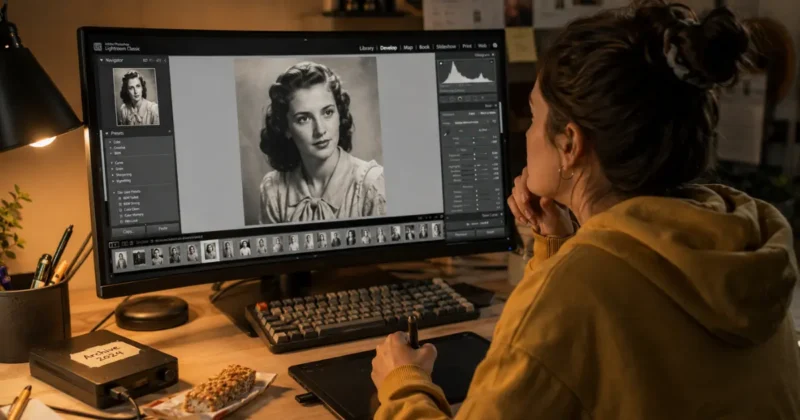
Canva’s free Image Enhancer is the most workflow-friendly option for social media creators. If you’re already building content in Canva, the one-click enhance feature handles basic resolution improvement and clarity correction without switching tools. It’s not Topaz-quality. It’s fast, free, and good enough for social media output sizes.
The realistic advice for most content creators: start with Canva’s free enhancer for quick work. Use AI Ease or MyHeritage for deeper restoration of specific important images. Invest in Topaz Photo AI when volume and output quality both matter enough to justify the cost.
FAQs – AI photo restoration
What is the best AI photo restoration tool in 2026?
Topaz Photo AI is the best desktop AI photo restoration tool for quality — it combines noise reduction, sharpening, and upscaling in one workflow. For free online use, AI Ease Photo Restoration is the strongest option. For mobile, Remini leads for portrait and old photo restoration specifically.
Is there a free AI photo restoration online tool that actually works?
Yes — AI Ease Photo Restoration, MyHeritage Photo Enhancer, and VanceAI all offer genuinely useful free tiers for AI photo restoration online free. MyHeritage is best for family portrait restoration. AI Ease handles the widest range of damage types. VanceAI adds free colorization alongside restoration.
Can AI restore really old or heavily damaged photos?
Yes — modern AI photo restoration tools handle scratches, tears, water damage, fading, and severe blur with impressive results. Heavily damaged photos benefit most from a two-step workflow: AI restoration first (Remini or AI Ease), then manual refinement in Adobe Lightroom for color and contrast. The more intact the original, the better the AI restoration result.
What is the best AI image enhancer free tool for upscaling?
Let’s Enhance is the best free AI image enhancer online for upscaling old photos. Canva’s free Image Enhancer is the most workflow-friendly free option for social media creators. For desktop use without cost, running GFPGAN through Stable Diffusion locally provides professional-grade AI image enhancer free results.
How do I colorize old black and white photos with AI?
Upload your black and white photo to Palette.fm or MyHeritage’s colorization feature — both are free and produce realistic color in about fifteen seconds. For the most control over colorization style, VanceAI offers multiple color tone options in its free tier. Always verify historically important colors against reference images since AI colorization makes educated guesses based on training data.
Final Thoughts: Is AI Photo Restoration Worth Using for Content Creation?
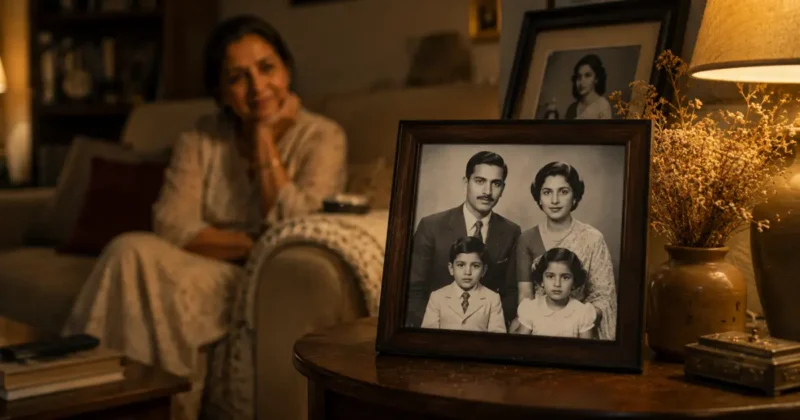
After genuinely working through that box of family photos and dozens of test images across every tool on this list, my honest conclusion is straightforward.
AI photo restoration in 2026 is genuinely worth using — not just for preserving family memories, but as a real content creation workflow. Restored vintage photos are unique, emotionally resonant, and visually distinctive in a way that stock photography simply isn’t. They tell real stories.
For content creators specifically — bloggers building historical content, YouTubers making documentary-style videos, social media managers who need visuals that stand out — AI restore old photos tools give you access to a category of visual content that was previously either expensive to produce or completely inaccessible.
And for product-based businesses and creators who need current photography rather than historical, the same AI upscaling and enhancement principles apply to new product shots — my guide on product photography with AI shows how to get studio-quality product images using very similar AI enhancement workflows.
Start with the free tools. Try AI Ease for restoration, Palette.fm for colorization, and Canva’s Image Enhancer for upscaling. That combination costs nothing and covers most creator needs.
Then decide whether the quality ceiling of paid tools like Topaz Photo AI is worth the investment for your specific use case.
What kind of old photos are you working with? Family portraits? Historical images for content? Drop it in the comments — I’m happy to give specific tool recommendations based on what you’re trying to restore.